• Skip to main content
  • Skip to primary sidebar
  • Skip to footer

Microsoft Excel Tips and Tricks - Computergaga

  • Home
  • Excel Online Courses
  • Excel Functions List
  • Free Downloads
  • Blog
  • Tutorials
  • About
Home / Archives for Excel Tips

Find the Weekday of a Date in Excel

When you enter a date into Excel, Excel will format it using its default date format. Excel provides plenty of alternative date formats for you to choose such as 14.03.01 and 14 March 2001.

We want to use a format that will tell us the weekday of the date, whether it is a Monday, Tuesday etc.

Formatting the Date

Type a date into a cell of the spreadsheet. This can be any date you want post 01/01/1900. It can be the date you were born, date you were married, or the date the 2012 Olympics starts. For this example, I will use Christmas day 2001

  1. Select the cell where the date was entered
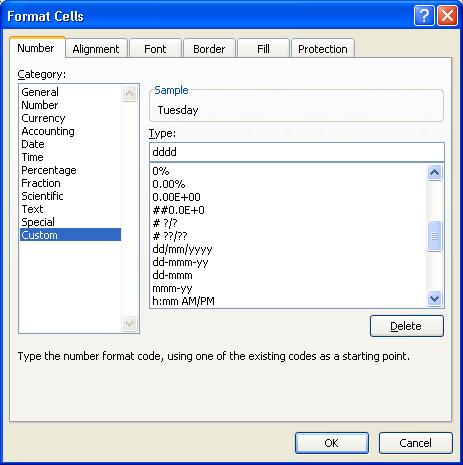
  2. Open the Format Cells dialogue box. In Excel 2003 click Format > Cells, or in Excel 2007 click the dialogue box launcher arrow in the corner of the Number group of the Home tab. You could also press Ctrl + 1
  3. Select the Number tab, if necessary
  4. Select Custom from the Category: list
  5. In the Type: box, replace its contents with dddd
Format the date to show a weekday
  1. Click Ok

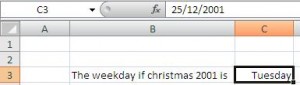
The weekday is now visible in the cell. Notice how the Formula Bar still displays the date as 25/12/2001. Formatting cells changes the appearance of the value, but the cell still contains the original value.

Original date value retained after formatting

Three Unknown Uses of the AutoFilter Tool

The AutoFilter tool in Microsoft Excel enables you to filter a large list of data to see only the records you want to see. It is a popular everyday tool for working with large Excel lists and helping you to find records and analyse your data.

This tutorial looks at three relatively unknown uses of the AutoFilter tool.

[Read more…] about Three Unknown Uses of the AutoFilter Tool

Sort Pictures in a List in Excel

If you are storing pictures in a list in Excel, then you need to make sure that you can sort the pictures in the list. Unless a few steps are taken in advance you will not be able to sort pictures in Excel.

Imagine you have a list of products and you have a picture of that product in one of the columns. When you sort the list by product name, price, or number sold you will want the pictures to move with the appropriate product.
There are two things you need to ensure are setup before this can happen;

[Read more…] about Sort Pictures in a List in Excel

Highlight Saturday and Sunday in a List

The Conditional Formatting tool can be used for some very cool tricks in Excel. Today, I needed it to format all the Saturdays and Sundays in a list.

A user had a list of dates and she wanted to highlight each Saturday and Sunday in the list so that they would be instantly recognisable. It also creates and nice effect by splitting each week into blocks.

Create the Conditional Formatting Rule

[Read more…] about Highlight Saturday and Sunday in a List

Select All the Blank Cells in a Sheet

Got asked in training yesterday if it was possible to select all the blanks cells in a sheet, and if there was a quick way to do it.

It was a large range of cells that contained blanks. These empty cells represented missing data that required filling in. By selecting all the blank cells it would be easier to step through the list and update the records.

  1. Select the cells where you want to look for blanks
  2. Click the Find & Select button on the Home tab of the Ribbon
  3. Select Go To Special from the menu

This special Go To area of Excel is awesome. It allows you to select only special aspects of the currently selected cells such as only the visible cells, the current region or those with comments.

  1. Select Blanks in the dialogue box and click Ok
The Go To Special dialog box

The empty cells are selected. Every time you type something into a cell and press Enter it will take you to the next blank cell.

To make this process quicker, you could record a macro in Excel that selects all the blank cells. This can then be assigned to a button on the toolbar. The next time you need to run this task, you can do so with the click of a button.

  • « Go to Previous Page
  • Page 1
  • Interim pages omitted …
  • Page 5
  • Page 6
  • Page 7
  • Page 8
  • Go to Next Page »

Primary Sidebar

Recent Posts

  • Excel SWITCH Function – Nested IF Function Alternative
  • Sum Formulas Only in Excel
  • How to Calculate Age in Excel
  • Custom Sort in Excel
  • Case Sensitive Lookup with XLOOKUP in Excel
Advanced Excel Success book

Footer

Contact

[email protected]

LinkedIn Twitter YouTube

Useful Links

  • Home
  • Excel Online Courses
  • Tutorials
  • Sitemap
  • Privacy Policy
  • Jobs by Jooble

Course Topics

  • Blog
  • Charts
  • Courses
  • Dashboards
  • Downloads
  • Excel Tips
  • Formulas
  • Mail Merge
  • Office
  • PivotTables
  • Power BI
  • Power Pivot
  • Power Query
  • VBA

Join Our Mailing List

© Copyright 2009 Computergaga · All Rights Reserved ·