You have your super XLOOKUP formula but it’s returning the #N/A error message.
Why?
And how do you fix it?
In this article, we will explore different reasons you’re seeing the #N/A error with XLOOKUP and the appropriate fix. We will then explore other errors you may encounter with XLOOKUP.
Download the sample file provided with this tutorial.
XLOOKUP Returns #N/A
The #N/A error is returned by XLOOKUP when there is not a value available for XLOOKUP to return. There are numerous reasons for this, but essentially, for some reason, XLOOKUP could not match the lookup value.
You can see Excel explaining this, with an XLOOKUP scenario, in the formula error card that appears on hover over the green error triangle.
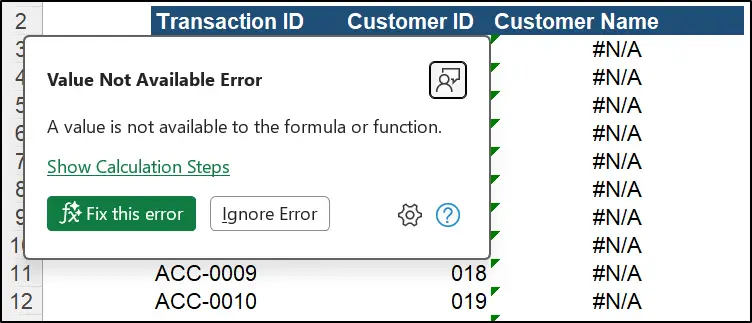
From here, you can ignore the error (certainly not advised in this scenario), or fix the error, which would typically get Copilot working on the task.
XLOOKUP Not Finding Value
Let’s explore what could be going wrong.
Mismatch of Data Types
One common reason that your XLOOKUP fails, even when the lookup value and the lookup array values look the same, is that they are of different data types.
In this example, we have a table with customer information named tblCustomers. The customer ID values are stored as text.
We are using the following XLOOKUP formula to return the customer name based on a match between the customer ID values between the two different tables.
=XLOOKUP([@[Customer ID]], tblCustomers[Customer ID], tblCustomers[Customer Name])
XLOOKUP returns #N/A as it cannot match the two customer ID’s. This is because the ID in tblCustomers is of a text data type and the ID in the main table is a numeric data type.
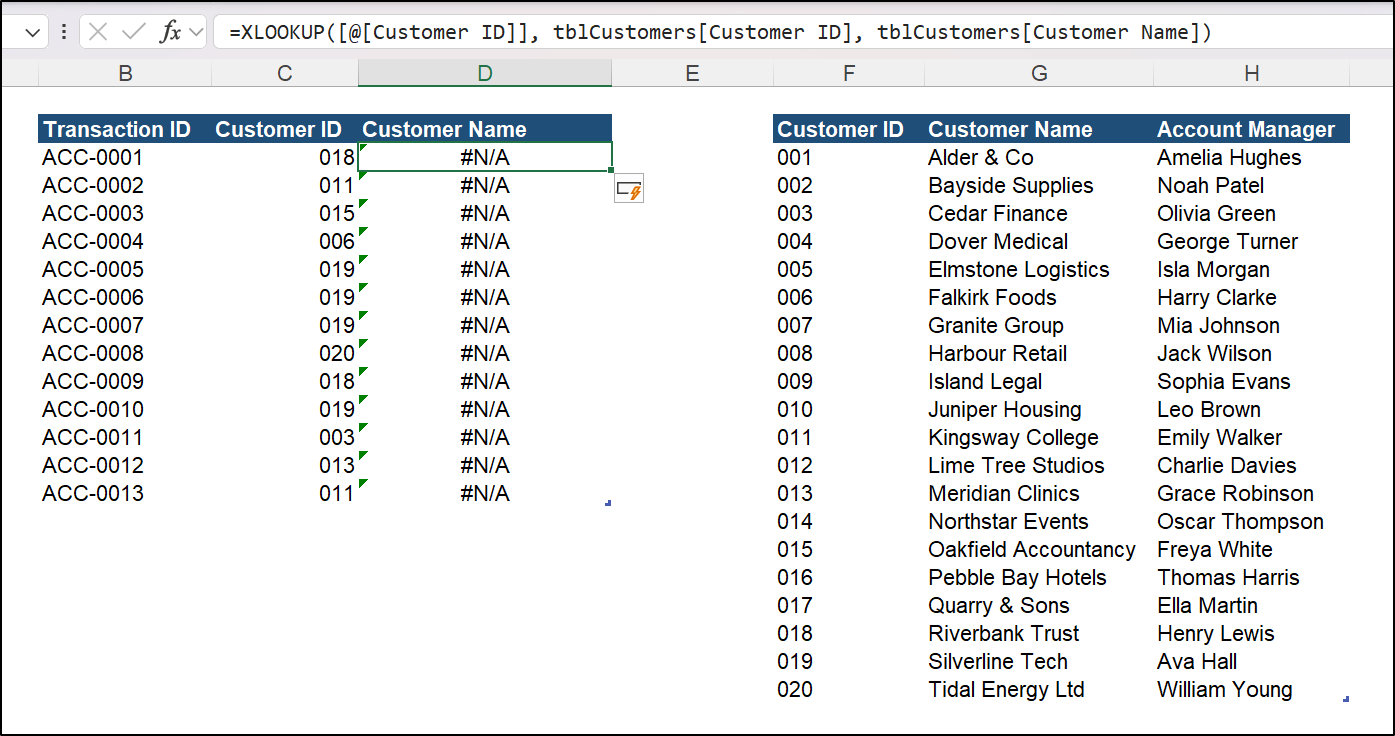
You can tell that the ID values are different data types, as they are aligned to the left in tblCustomers, yet to the right in the main table (though users can change this alignment so do not depend on it 100%).
One of the best ways to check the data type of a value is to use the information functions; ISTEXT and ISNUMBER. They will return TRUE or FALSE for if the number is text, or is number, depending on what you’re checking. This allows us to check row by row for inconsistencies too.
To fix this mismatch, we need to either convert the text ID’s to numbers or the numeric ID’s to text. The option we choose depends on our requirements, and there are many ways to do this.
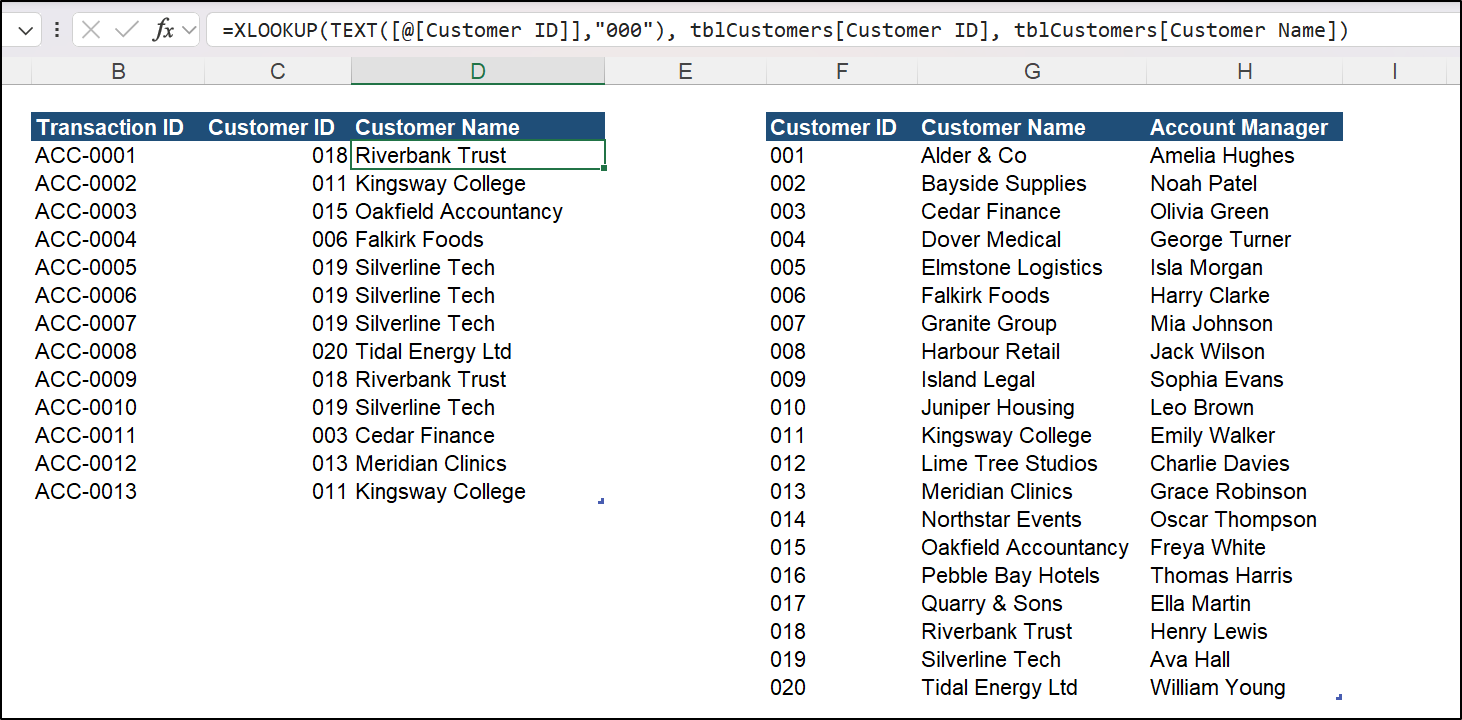
For this example, we will nest the TEXT function within our XLOOKUP, to convert the lookup value to text and in a specific format. This ensures that we get the match we need.
=XLOOKUP(TEXT([@[Customer ID]], "000"), tblCustomers[Customer ID], tblCustomers[Customer Name])
Trailing Spaces
This one is a really common issue in Excel and occurs for a variety of reasons.
Unwanted additional spaces, typically at the end of a value, known as trailing spaces, cause our values to not match, and XLOOKUP returns #N/A.
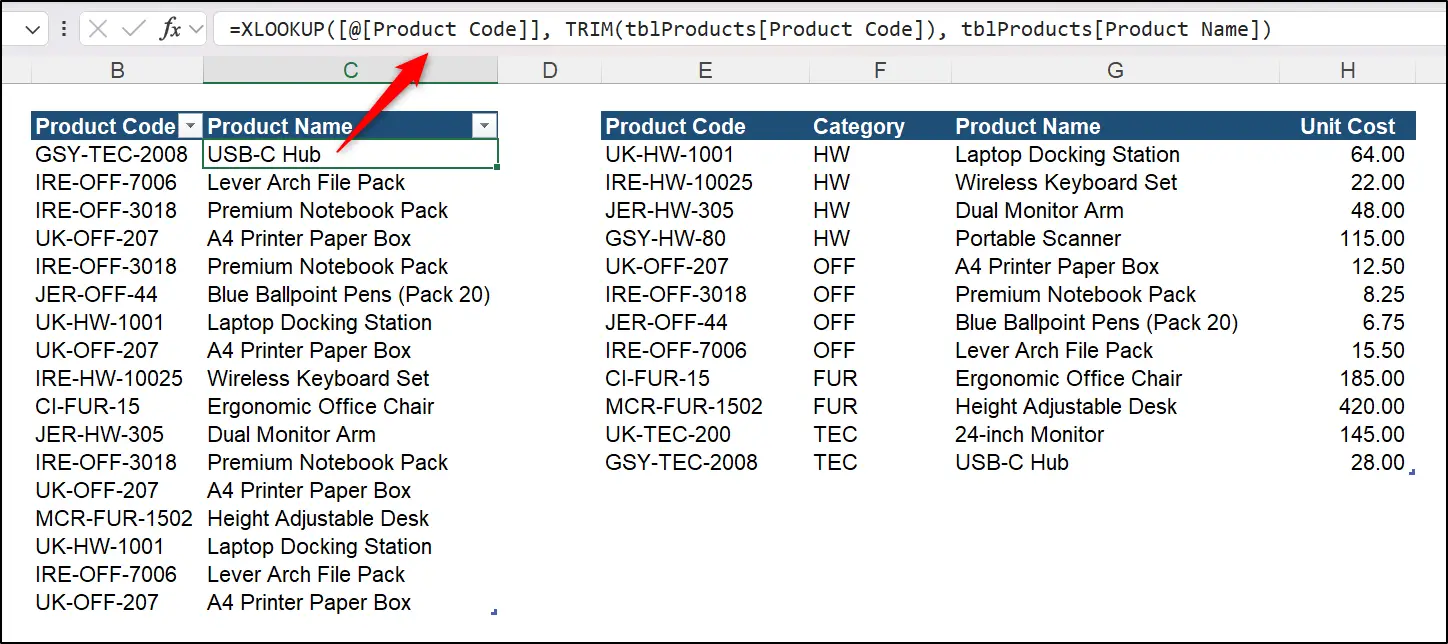
To the naked eye, the values in the ‘Product Code’ column of each table appear the same, yet the #N/A is returned for the product ‘IRE-OFF-7006’ as there is a trailing space in the code of the second table.
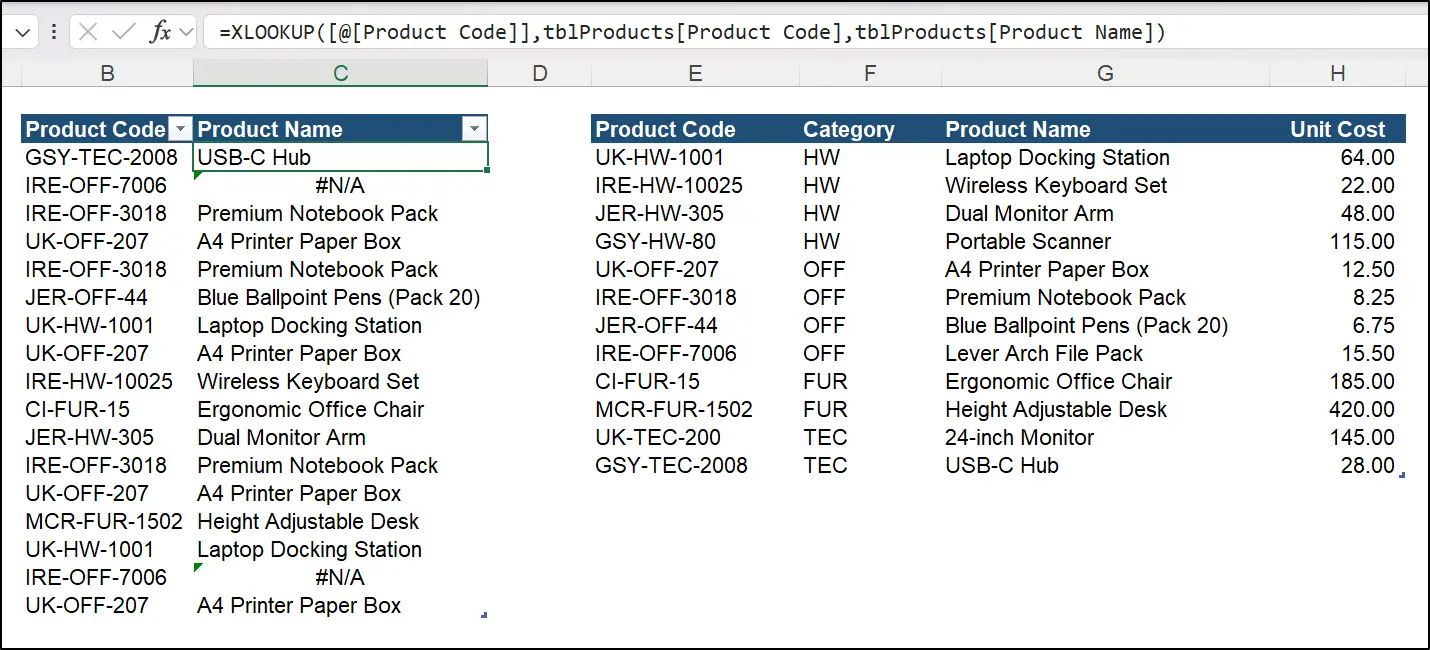
Ideally, these kind of fixes should be done to prepare the data before we start performing XLOOKUP functions, probably by using Power Query. To get our XLOOKUP working for now though, we will bring in the TRIM function.
The TRIM function removes any extra spaces at the beginning, end, or between the words of the cell content. Using TRIM on the values of the lookup array gives us the valid match.
=XLOOKUP([@[Product Code]], TRIM(tblProducts[Product Code]), tblProducts[Product Name])
Bad Characters in our Values
The best stories often have bad characters in addition to good ones. In Excel, there are some pesky characters too, that are often brought into Excel when users copy from PDF files, web pages, and other external sources.
In this example, we have two #N/A errors being caused for different reasons. One for product ‘GSY-TEC-2008’ and another for product ‘IRE-HW-10025’.
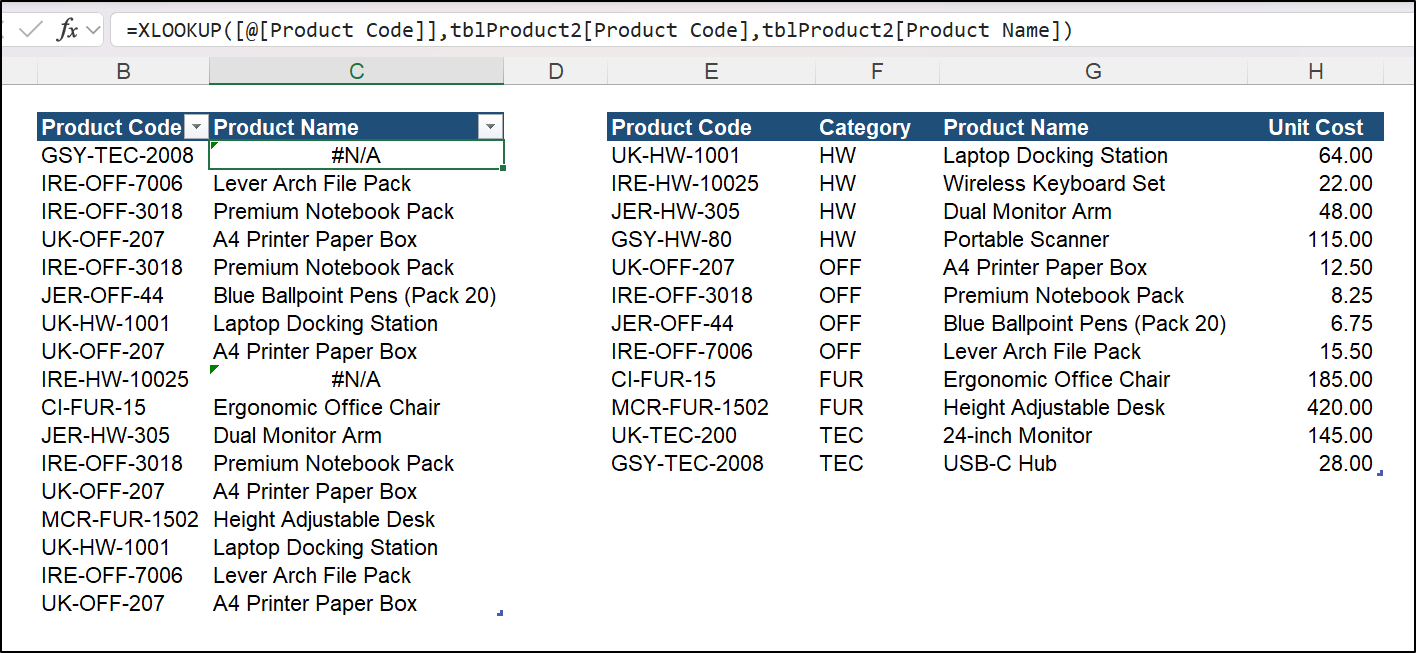
Again, the issue is not obvious, and it can be so difficult to detect problems such as this when working with large volumes of data.
With product ‘IRE-HW-10025’, found in cell E4 of the lookup table, there is a line break character. Due to this, we do not get a valid match with our XLOOKUP function.
To remove the line break, we could use the CLEAN function on the lookup array. CLEAN will remove any non printable characters, which includes the line break.
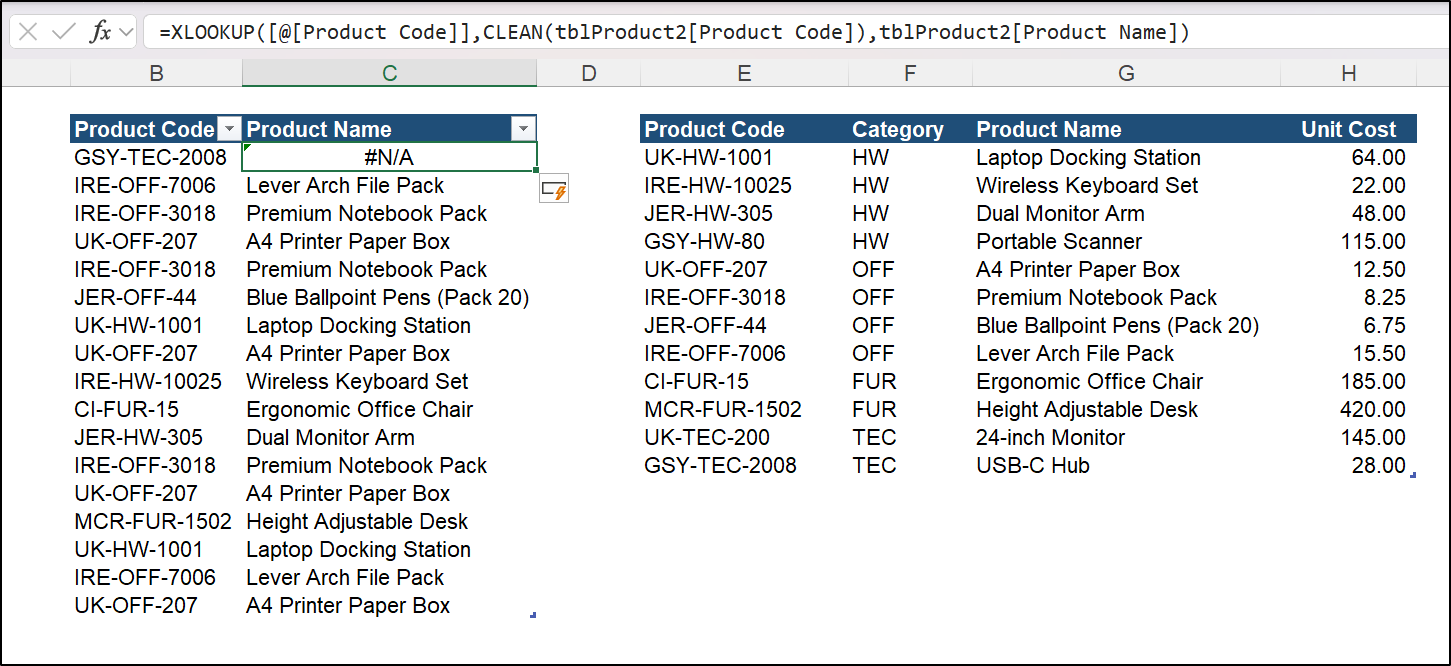
For product ‘GSY-TEC-2008’, there is a non breaking space (a special type of space that can occur when copying from web pages and other sources) in cell B3 (the product code of the main table).
Now, the TRIM and CLEAN functions cannot help us here. A non breaking space is not the same space that TRIM can remove. And a non breaking space is not something that CLEAN can remove either.
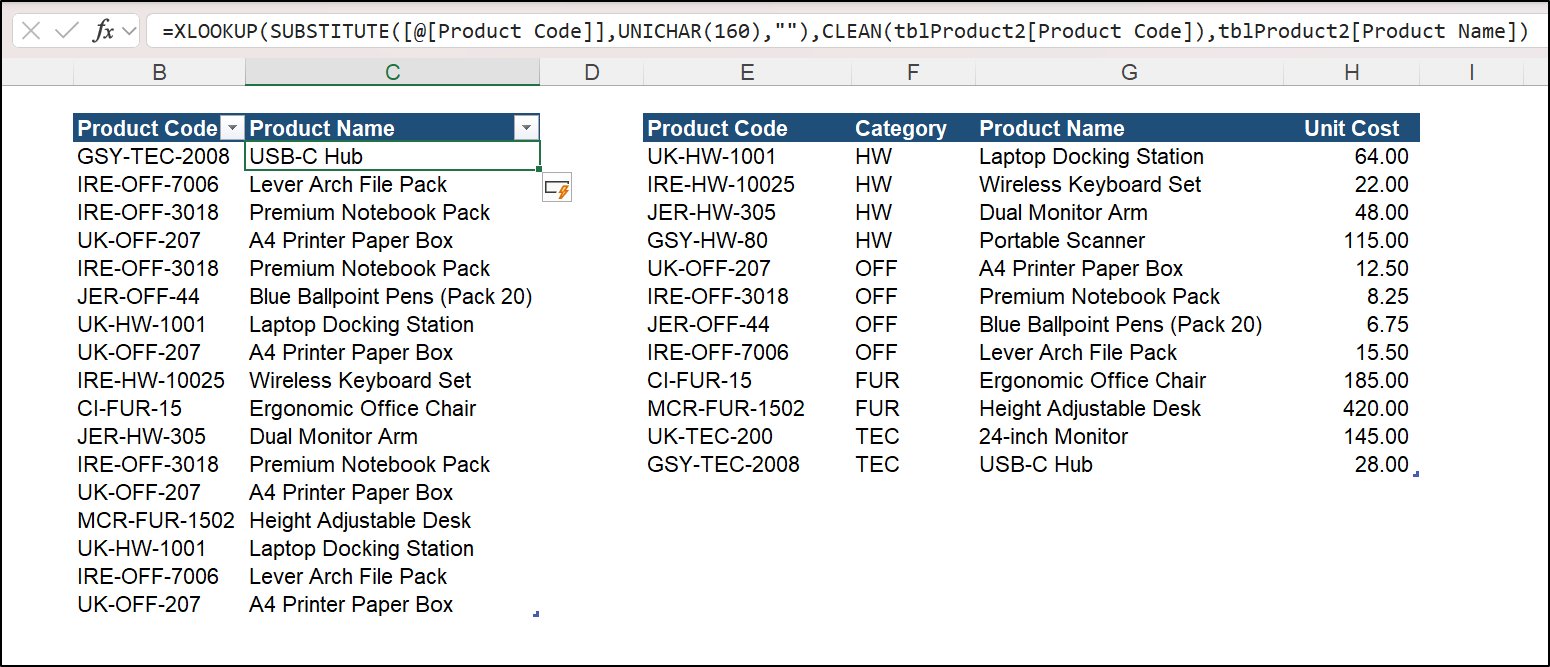
So, we will target this character specifically by using the SUBSTITUTE function and the UNICHAR function.
The non breaking space is character code 160, so we can use the UNICHAR function to reference that character code specifically. By doing this within the text to replace argument of SUBSTITUTE, we can replace all occurrences of the non breaking space with nothing.
SUBSTITUTE([@[Product Code]], UNICHAR(160), "")
Here is the full XLOOKUP formula with the SUBSTITUTE used for the lookup value.
=XLOOKUP(
SUBSTITUTE([@[Product Code]], UNICHAR(160), ""),
CLEAN(tblProduct2[Product Code]),
tblProduct2[Product Name]
)
Issues with Decimals
In this example, we have an export of shipments into Excel, and although the values look good, they are not precise, and therefore no match exists for the XLOOKUP formula.
In the main table, these exported values are formatted different to their true value. You can see that the value in cell C5 is actually 2.4999999997, and not 2.5 as it appears in the cell.
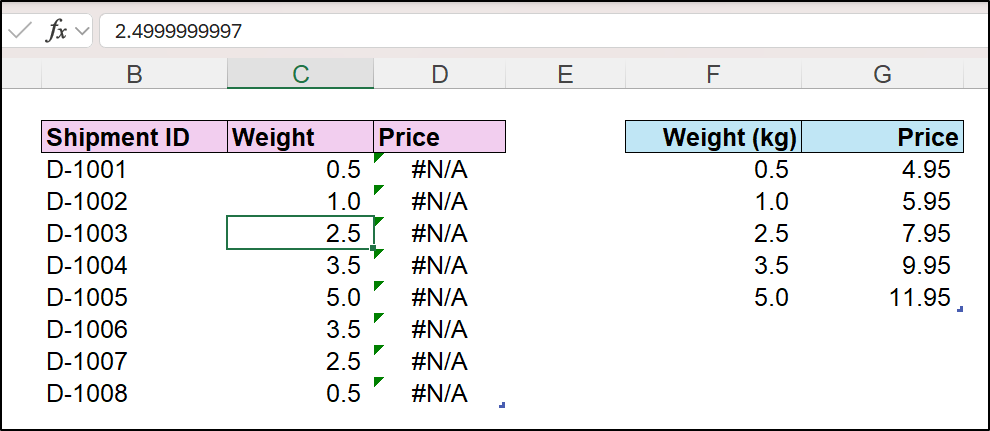
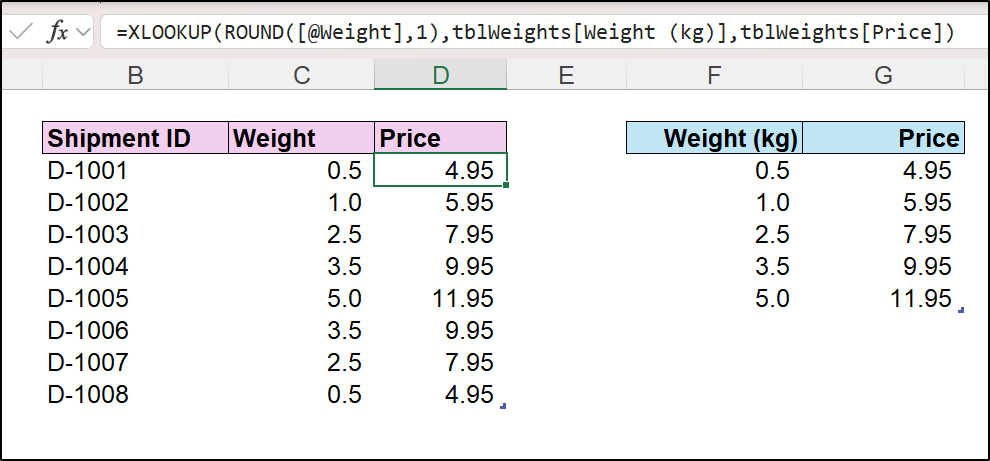
For XLOOKUP to get an exact match on the lookup value, we need to ensure that they are truly the same value. For this, we can round the value within the lookup value of XLOOKUP using the ROUND function.
=XLOOKUP(ROUND([@Weight], 1), tblWeights[Weight (kg)], tblWeights[Price])
XLOOKUP Returns the Wrong Result
All the XLOOKUP problems in this tutorial have shown XLOOKUP returning the #N/A error. However, sometimes there is no error message and XLOOKUP returns the wrong result.
As you expect, there are numerous reasons this can happen. Let’s look at the two most common causes.
Data Contains Duplicate Values
If your lookup value occurs in the lookup table multiple times, XLOOKUP will return the first match, by default.
So, if your lookup table contains duplicates, the solution depends on what you’re trying to achieve.
Take this example, where we want to return the latest status of a ticket ID. To achieve this, we want to return the last match of the value. Or, to put it another way, perform a reverse search, so the first match is actually the last occurrence of that value in the list.
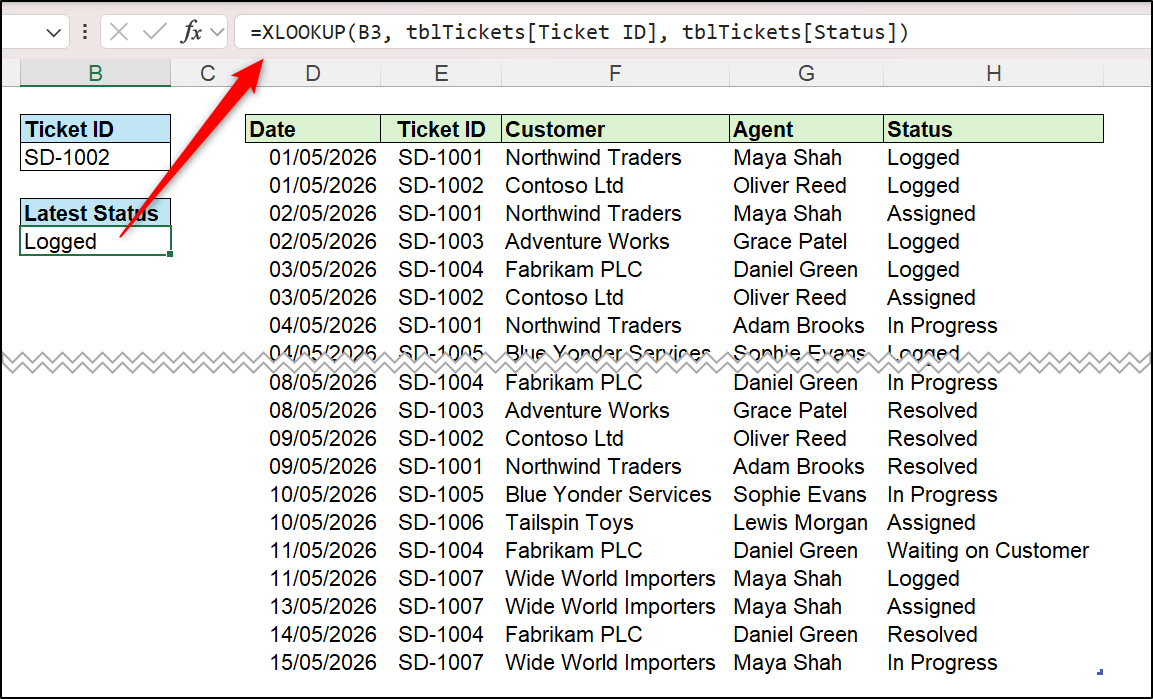
The XLOOKUP function has a setting for this exact requirement – the search mode.
It is the sixth and final argument of XLOOKUP and by entering a -1 you’re instructing XLOOKUP to search from bottom to top.
=XLOOKUP(B3, tblTickets[Ticket ID], tblTickets[Status], , 0, -1)
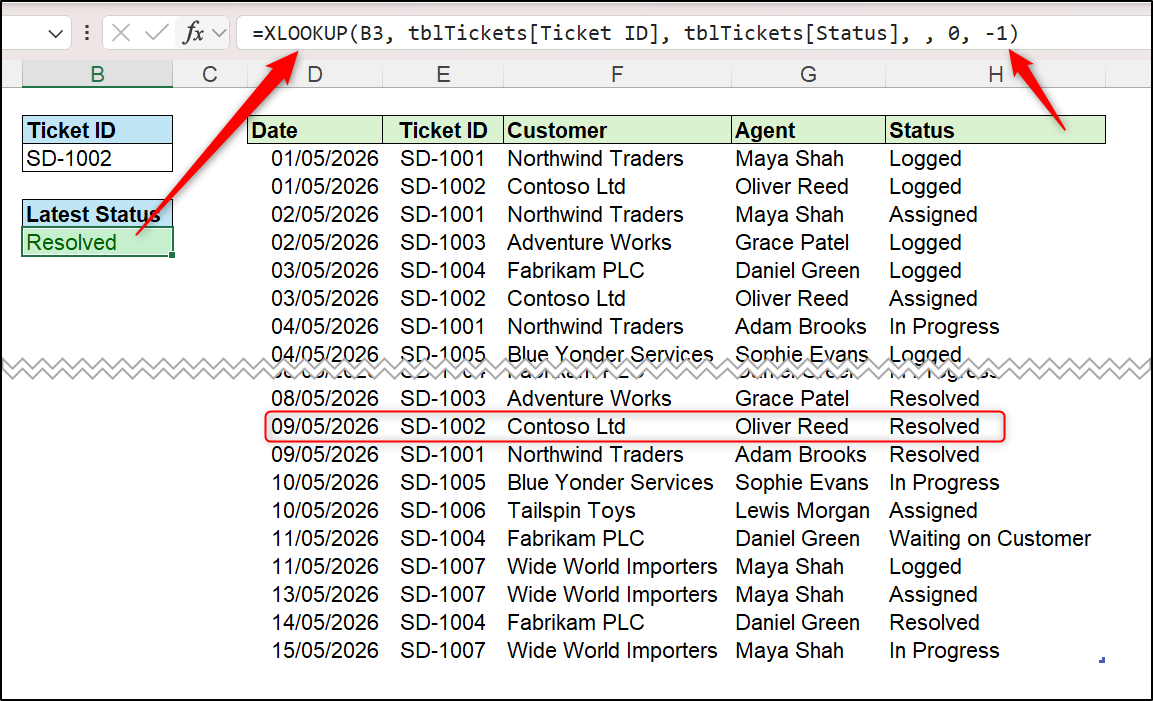
An alternative outcome, is that you want to return all occurrences of the matched value.
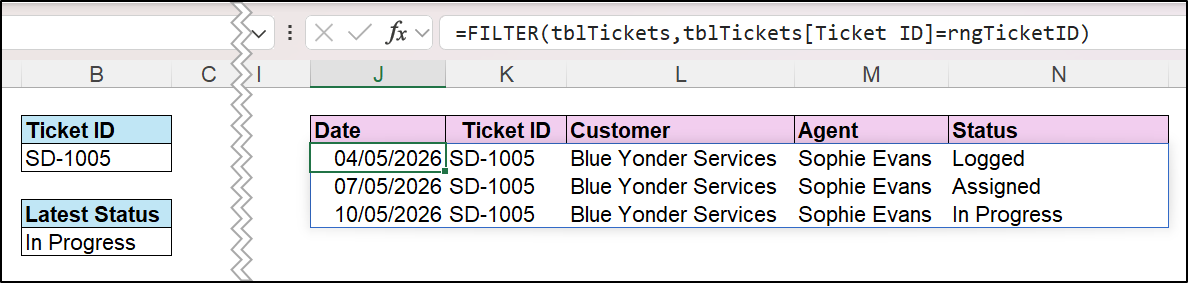
If this is your requirement, then XLOOKUP is not really the Excel function you’re after – you want FILTER.
This simple FILTER formula returns all rows of the table for the matched item. The first argument is the array to return (in this instance the entire table), and the second argument is the criteria (which is the match for the ticket ID).
=FILTER(tblTickets, tblTickets[Ticket ID]=rngTicketID)
In this example, cell B3 has been named rngTicketID for easier reference in formulas and elsewhere.
XLOOKUP Not Updating
Another possible problem, is that your XLOOKUP function is not updating.
Maybe you have a wonderful Excel dashboard and when you type a new lookup value into a cell, the XLOOKUP result does not change.
If this happens, your first check should be that Excel formulas are set to automatic calculation. You can do this by clicking Formulas > Calculation Options.
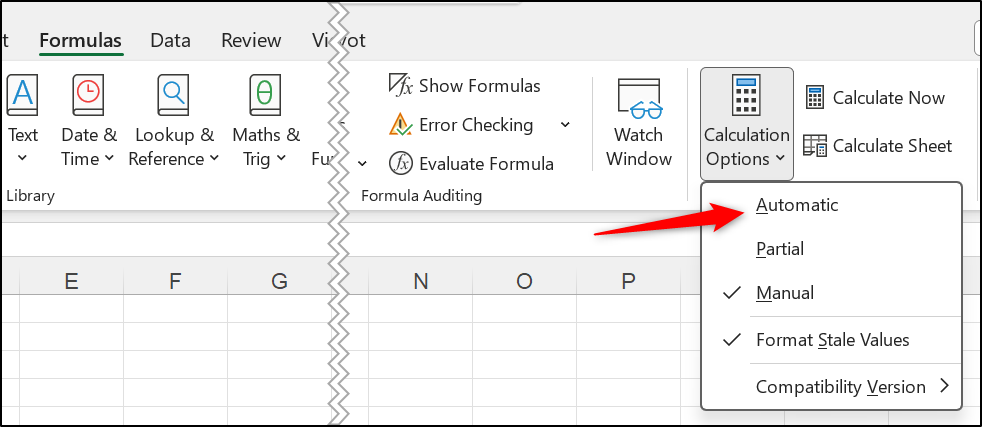
If formulas are already set to automatic, check that the cell is not formatted as text, and also check that Formulas > Show Formulas is not enabled.
So, common causes of XLOOKUP returning #N/A errors is a data type mismatch, or your values containing hidden characters such as spaces and line breaks, among other reasons.



Leave a Reply