• Skip to main content
  • Skip to primary sidebar
  • Skip to footer

Microsoft Excel Tips and Tricks - Computergaga

  • Home
  • Excel Online Courses
  • Excel Functions List
  • Free Downloads
  • Blog
  • Tutorials
  • About
Home / Archives for Formulas

Highlight the Cells that Contain a Specific Word (and it Matches Case)

In this blog post, we look at how to highlight the cells that contain a specific word. We will also ensure that the word in the cell matches the case of the word being looked for.

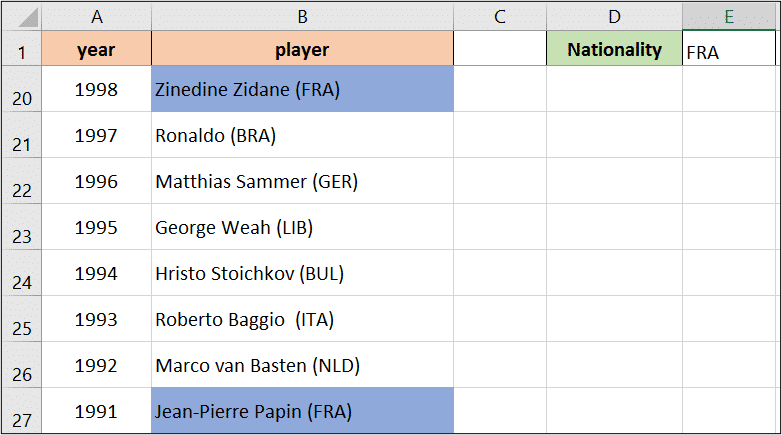
For this example, we have a list of the Ballon d’or winners of all time. Column B contains 3 letters in uppercase (after the name) which identify the country that the player represented at the time of winning the award.

In cell E1 I have entered the 3 digits for a country. I would like to automatically change the colour of all the cells that contain the country written in E1.

Highlight cells that contain a specific word

There is a good chance that the 3 digits identifying a country could also occur in a players name. For example, the letters for France – FRA do occur in the name Franz Beckenbauer.

To prevent this happening, we will match the case of the word we are searching for, as it is always written in upper case.

[Read more…] about Highlight the Cells that Contain a Specific Word (and it Matches Case)

4 Excel VLOOKUP Examples – Why Use the VLOOKUP Function

When learning the VLOOKUP function, one of the things people can struggle with is seeing why this function is so useful. In this blog post, we look at 4 Excel VLOOKUP examples.

The purpose of VLOOKUP is to look for a value and return some information about that value. Although quite specific in its role, this function can be used in some very clever and interesting ways.

For anyone reading this who may be quite new to VLOOKUP, lets have a quick look at its structure.

=VLOOKUP(lookup_value, table_array, col_index_num, [range_lookup])
  • Lookup Value – The value you want to look for.
  • Table Array – The table containing the value to look for and value to return.
  • Col Index Num – The column number of the Table Array containing the value to return.
  • Range Lookup – Optional argument. To specify whether an approximate or exact match on the Lookup Value is needed.

For more information on how to use VLOOKUP, check out the Ultimate VLOOKUP guide.

Watch the Video – Excel VLOOKUP Examples

If you would prefer to watch the video, or simply watch it whilst you refer to the formulas in this tutorial. You can do so below.

[Read more…] about 4 Excel VLOOKUP Examples – Why Use the VLOOKUP Function

Using Wildcard Characters in Excel Formulas

Use wildcard characters in Excel formulas to perform partial matches on text. This can be extremely useful. Excel allows the use of wildcards in filters, the Find and Replace tool and especially in formulas.

This blog post explores some examples of using wildcard characters in formulas to find, sum or count cells containing partial matches to what we are searching for.

Watch the Video – Wildcard Characters in Excel Formulas

If you prefer a video tutorial, then check it out below, otherwise please continue for the written tutorial.

Before we look at some examples of wildcard characters in Excel formulas, we should discuss the three types of wildcard characters you can use in Excel.

[Read more…] about Using Wildcard Characters in Excel Formulas

5 Groovy SUMPRODUCT Function Examples – Advanced Excel Formulas

In this blog post, we look at 5 SUMPRODUCT function examples. This is one of the great functions of Excel. A function that can turn you from being an Intermediate/Advanced Excel user to an Excel guru instantly.

The SUMPRODUCT function is powerful, versatile and expansive. It is the go to function when looking for an alternative to array formulas.

Ok, are you ready to rock on with these 5 awesome SUMPRODUCT examples?

Let’s do this.

If you prefer to watch videos, check out this video covering the tutorials from this blog post.

Count and Sum the Values for a Specific Month

In the first of our SUMPRODUCT function examples, we will use the SUMPRODUCT function to return the count and sum of the values from a specific month.

In this example the formula below has been entered into cell E3 to count the values for the month specified in cell D3.

=SUMPRODUCT(--(MONTH($A$2:$A$12)=$D$3))
SUMPRODUCT example to sum or count values for a specific month

The MONTH function has been used to extract the month from the each date in the range. This is then tested to see if it is equal to the month we want to count.

The double hyphens ‘–‘ are used to convert the true and false responses of this logical test to 1 and 0. The SUMPRODUCT then sums these 1’s and 0’s to return the answer.

The formula below has then be entered into cell F3 to return the total sales value for that month.

=SUMPRODUCT(--(MONTH($A$2:$A$12)=$D$3),B2:B12)

For this we just needed to add a comma and then the range of cells containing the sales values.

This works because the SUMPRODUCT function multiplies the 1’s and 0’s from month test by these sales values. And then these results are all summed.

Count the Occurrences of Specific Words from a Range of Cells

This example can be very useful if you have to analyse comments, feedback or SEO keyword data. In these situations you will have large volumes of text and you may be looking for the occurrence of specific words.

In this example, the SUMPRODUCT formula has been used in cell D2 to count all the occurrences of words entered in cell C2.

=SUMPRODUCT(--(ISNUMBER(FIND(C2,A2:A9))))
Count instances of words in a range with this SUMPRODUCT function example

In this formula, the FIND function searches for the words in each cell. If the words are found then FIND returns its starting position, and if not it returns and error value.

The ISNUMBER function will then return true if a number is returned, or false if not. The double hyphens are then used just like the previous example to convert the true and false to 1 and 0.

The 1’s and 0’s are then summed by SUMPRODUCT to return the final count.

Count Unique Values

The SUMPRODUCT function can also be used to perform a unique count of values in a range.

Being able to count how many orders and how many training sessions is great. But sometimes you need to know how many different customers placed orders, and how many different training sessions. Then you need a unique count.

The formula below performs a unique count on range A2:A10.

=SUMPRODUCT(1/COUNTIF(A2:A10,A2:A10))
Count the unique values only with SUMPRODUCT and COUNTIF

For this to work, the COUNTIF function counts the occurrences for each name in the list producing the below. This says that Robert occurs twice, James once and Sally three times etc.

=SUMPRODUCT(1/{2;1;3;2;1;1;3;1;3})

These values are then divided by the 1 producing the below.

=SUMPRODUCT({0.5;1;0.33;0.5;1;1;0.33;1;0.33})

And then SUMPRODUCT sums them all up delivering the unique count.

Sum the Top 3 Values from a Range

How about summing only the top values from a range. Yes SUMPRODUCT can do this.

In this example, we sum only the top 3 values, but this can easily be adapted to top 5, top 10 or whatever you wish.

The formula below sums only the top 3 values in range B2:B12.

=SUMPRODUCT(LARGE(B2:B12,{1,2,3}))
SUMPRODUCT function example to sum the top 3 values in a range

This formula uses the LARGE function with SUMPRODUCT. The LARGE function is used to return kth largest value in a data set, such as the 5th largest.

In this example we have provided the LARGE function with an array of {1, 2, 3} so that it returns the top 3. The SUMPRODUCT then sums them.

This is all in the beauty of the SUMPRODUCT formula handling arrays of data.

If you need to sum the values from the bottom of the range you can use the SMALL function.

Perform a Two Way Lookup with SUMPRODUCT

In the final one of our SUMPRODUCT function examples, we see the SUMPRODUCT formula performing a two way lookup.

You may have created two way lookups before in the past. The most common way to do this is to use the INDEX and MATCH function combination.

The formula below performs a two way lookup. It looks for the value of cell B1 down column A, and the value in cell D1 along row 3. It returns the value at the intersection, which in the image is £246.

=SUMPRODUCT((A4:A13=B1)*(A3:M3=D1),A4:M13)
Two way lookup formula with SUMPRODUCT

The asterisk (*) is used as an AND operator in this formula. And the second array is the range to return the value from i.e. A4:M13.

This formula is so incredibly versatile we could be listing far more SUMPRODUCT function examples in this tutorial. For example, it can also sum the values from every nth row of a list.

What have you used it for?

More awesome Excel Tutorials

  • Use the MID and FIND functions to extract text
  • 5 awesome uses of the INDIRECT function
  • 4 amazing uses of CONCATENATE
  • How to use the TEXT function of Excel

Excel INDIRECT Function – 5 Examples

In this blog post, we look at 5 examples of the INDIRECT function in Excel. This is a very misunderstood function. It is an incredibly useful function.

Prefer to watch the video? The video tutorial below will demonstrate all 5 Excel INDIRECT function examples.

Download the sample INDIRECT function workbook to practise the examples.

[Read more…] about Excel INDIRECT Function – 5 Examples
  • « Go to Previous Page
  • Page 1
  • Interim pages omitted …
  • Page 8
  • Page 9
  • Page 10
  • Page 11
  • Page 12
  • Interim pages omitted …
  • Page 20
  • Go to Next Page »

Primary Sidebar

Recent Posts

  • TEXTSPLIT in Excel: 9 Practical Examples You Can Use Today
  • Create Custom In-Cell Bar Charts in Excel
  • Excel SWITCH Function – Nested IF Function Alternative
  • Sum Formulas Only in Excel
  • How to Calculate Age in Excel
Advanced Excel Success book

Footer

Contact

[email protected]

LinkedIn Twitter YouTube

Useful Links

  • Home
  • Excel Online Courses
  • Tutorials
  • Sitemap
  • Privacy Policy
  • Jobs by Jooble

Course Topics

  • Blog
  • Charts
  • Courses
  • Dashboards
  • Downloads
  • Excel Tips
  • Formulas
  • Mail Merge
  • Office
  • PivotTables
  • Power BI
  • Power Pivot
  • Power Query
  • VBA

Join Our Mailing List

© Copyright 2009 Computergaga · All Rights Reserved ·