• Skip to main content
  • Skip to primary sidebar
  • Skip to footer

Microsoft Excel Tips and Tricks - Computergaga

  • Home
  • Excel Online Courses
  • Excel Functions List
  • Free Downloads
  • Blog
  • Tutorials
  • About
Home / Archives for Formulas

Use the MID and FIND Functions to Extract Text

This post looks at using a couple of text functions together in Excel. The MID and FIND functions are used to extract text from a cell starting from a specified delimiter.

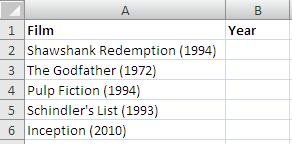
The example below shows a list of five films, each with the year they came out. We want to extract the year from the text and enter it into a different cell. We can then use the year in filters, sorts and PivotTables.

List of films with year of release

The MID function is used to extract a specified number of characters from a text string. However, it needs a starting character. With these films, the starting position varies between each cell. So, MID will need some help.

The FIND function is used to return the starting position of a character. Because the year is enclosed in brackets, the FIND function can be used to find the opening bracket of each cell and it give its position to the MID function as an index number.

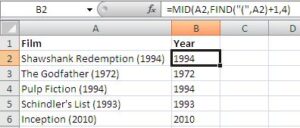
The formula entered in cell B2 is shown below.

=MID(A2,FIND("(",A2)+1,4)

The +1 is used so that the MID function starts from the character after the opening bracket.

MID and FIND functions in Excel extracting text

Excel has many useful text functions. Notably, the LEFT (beginning) and RIGHT (end) functions are also used to extract text from a cell. The FIND function can also be used with those functions to assist with irregular strings.

[Read more…] about Use the MID and FIND Functions to Extract Text

Formula to Match Records on Different Worksheets

I was presented with a problem yesterday where somebody had two sheets of records. They were the same records but one list contained 16000 entries and the other had 14000. The person needed to know what records were missing from the sheet with fewer records.

This required matching records from different worksheets using multiple conditions. To check if they were a duplicate, the first name, last name and company fields needed to match.

To achieve this I wrote an array formula using the IF and SUMPRODUCT functions. This can be seen below testing the data from columns A, B and C across both sheets

{=IF(SUMPRODUCT(((Sheet1!$A$2:$A$16000)=A2)*((Sheet1!$B$2:$B$16000)=B2)*((Sheet1!$C$2:$C$16000)=C2))=1,”Yes”,””)}

An array formula has curly braces at the ends which are added when you press Ctrl + Shift and Enter to run the formula.

The SUMPRODUCT formula returns true if you all three conditions match. THE IF function then displays the word Yes if there is a match on a record, and nothing if there is no match.

The column than then be filtered by blank cells to return all the missing records.
Find out more about the SUMPRODUCT function.

How would you have solved this problem? Drop me a comment with other formulas that could have achieved the same result.

  • « Go to Previous Page
  • Page 1
  • Interim pages omitted …
  • Page 18
  • Page 19
  • Page 20

Primary Sidebar

Recent Posts

  • TEXTSPLIT in Excel: 9 Practical Examples You Can Use Today
  • Create Custom In-Cell Bar Charts in Excel
  • Excel SWITCH Function – Nested IF Function Alternative
  • Sum Formulas Only in Excel
  • How to Calculate Age in Excel
Advanced Excel Success book

Footer

Contact

[email protected]

LinkedIn Twitter YouTube

Useful Links

  • Home
  • Excel Online Courses
  • Tutorials
  • Sitemap
  • Privacy Policy
  • Jobs by Jooble

Course Topics

  • Blog
  • Charts
  • Courses
  • Dashboards
  • Downloads
  • Excel Tips
  • Formulas
  • Mail Merge
  • Office
  • PivotTables
  • Power BI
  • Power Pivot
  • Power Query
  • VBA

Join Our Mailing List

© Copyright 2009 Computergaga · All Rights Reserved ·