• Skip to main content
  • Skip to primary sidebar
  • Skip to footer

Microsoft Excel Tips and Tricks - Computergaga

  • Home
  • Excel Online Courses
  • Excel Functions List
  • Free Downloads
  • Blog
  • Tutorials
  • About
Home / Archives for Formulas

Non-Adjacent Columns with FILTER Function

This tutorial will return non-adjacent columns with the FILTER function. Dynamic array functions such as FILTER and SORT can only return consecutive columns natively. However, there are various methods to specify the columns to return from the array. Functions such as CHOOSECOLS, CHOOSE and INDEX are wonderful for this task.

You can download the Excel workbook to follow along
[Read more…] about Non-Adjacent Columns with FILTER Function

Moving Average in Excel

This tutorial will look at how to calculate moving average in Excel. The moving average is sometimes referred to as the rolling average as it averages the values from a rolling, or moving, date range. In this post, our focus is on a seven-day moving average.

You can download the Excel workbook used in this tutorial to follow along.

[Read more…] about Moving Average in Excel

Excel IMAGE Function – Insert Images from a Cell Value

The IMAGE function in Excel enables us to return an image to a cell using an Excel formula.

This function makes it easy to lookup images based on a cell value, and because the image is stored in the cell, it is returned when sorting and filtering, and when using other functions such as XLOOKUP, FILTER and IF.

Excel IMAGE Function

The IMAGE function accepts five arguments, but only the source argument is mandatory. The other arguments enable us to specify alternative text and to specify the size of the image.

IMAGE(source, [alt_text], [sizing], [height], [width])
  • Source: The URL of the image file. This can be entered as a text string, be a reference to a cell containing the URL path, or be a formula that returns a valid URL path.
  • Alt text: The alternative text for the image.
  • Sizing: Determines the dimensions of the image. There are four options to choose from.
    • 0 – used to fit the picture to the cell maintaining its aspect ratio.
    • 1 – fill the cell ignoring the aspect ratio.
    • 2 – keep the original image size even if it ignores the cell boundary.
    • 3 – set the images height and width.
  • Height: The image height in pixels.
  • Weight: The image width in pixels.

The Excel IMAGE function can handle numerous image formats including JPEG, PNG, bitmap, TIFF, and more. The source, however, must be a URL using the ‘https’ protocol.

Download the practise workbook to follow along.

Let’s see some examples of it in action.

[Read more…] about Excel IMAGE Function – Insert Images from a Cell Value

SEQUENCE Function in Excel

In this tutorial, we will introduce you to the fabulous SEQUENCE function in Excel along with two ‘real world’ examples of its use.

The SEQUENCE function is a dynamic array function and is only available in Excel 365, Excel 2021 and in Excel Online.

When you first see the SEQUENCE function, it is maybe not that clear how it will come in useful. So, two examples will be provided toward the end of this tutorial, and in the following video, to see some practical uses.

You can download the Excel workbook used in this tutorial to follow along.

[Read more…] about SEQUENCE Function in Excel

Sort by Drop Down List in Excel

In this tutorial, we see how to sort by drop down list in Excel.

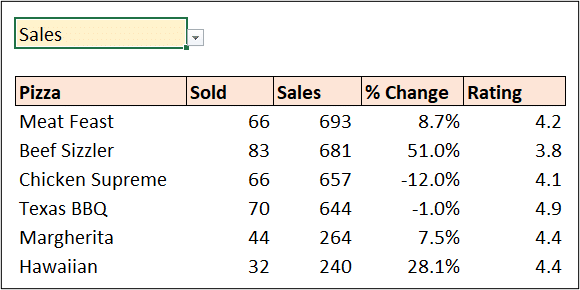
We have a table containing details about pizza and their performance such as the feedback rating, how many have been sold and the % change from the previous pizza data.

We want to be able to select the column to sort by from a drop down list, and then the table will be automatically sorted by the chosen column.

Sample pizza data

Watch the video, or read on for the full tutorial.

The tutorial uses the power of the array engine of Excel to sort by drop down list. However, there is another video at the end of the tutorial that shows how to do this in all versions of Excel.

Download the sample workbook to follow along.

[Read more…] about Sort by Drop Down List in Excel
  • « Go to Previous Page
  • Page 1
  • Page 2
  • Page 3
  • Page 4
  • Page 5
  • Interim pages omitted …
  • Page 20
  • Go to Next Page »

Primary Sidebar

Recent Posts

  • TEXTSPLIT in Excel: 9 Practical Examples You Can Use Today
  • Create Custom In-Cell Bar Charts in Excel
  • Excel SWITCH Function – Nested IF Function Alternative
  • Sum Formulas Only in Excel
  • How to Calculate Age in Excel
Advanced Excel Success book

Footer

Contact

[email protected]

LinkedIn Twitter YouTube

Useful Links

  • Home
  • Excel Online Courses
  • Tutorials
  • Sitemap
  • Privacy Policy
  • Jobs by Jooble

Course Topics

  • Blog
  • Charts
  • Courses
  • Dashboards
  • Downloads
  • Excel Tips
  • Formulas
  • Mail Merge
  • Office
  • PivotTables
  • Power BI
  • Power Pivot
  • Power Query
  • VBA

Join Our Mailing List

© Copyright 2009 Computergaga · All Rights Reserved ·