• Skip to main content
  • Skip to primary sidebar
  • Skip to footer

Microsoft Excel Tips and Tricks - Computergaga

  • Home
  • Excel Online Courses
  • Excel Functions List
  • Free Downloads
  • Blog
  • Tutorials
  • About
Home / Archives for Formulas

Advanced Excel Skills

Excel is an extremely powerful program used by businesses all over the world. Users with advanced Excel skills are in huge demand.

If you are wondering “how to improve my Excel skills?”, you are in the right place. The list below is a collection of advanced Excel tips to enhance Excel skills and make you an Excel superhero.

Advanced Excel Formulas

If you asked someone, what are advanced Excel skills? You can be sure that advanced Excel formulas would be a common response.

Formulas are what drive an Excel spreadsheet. Formulas provide the muscle for a spreadsheet to analyse, manipulate, convert and look up data with incredible speed and power.

An advanced Excel user would need advanced formula skills. They would have a commonly used list of functions that they know well, but also the skills and confidence to adapt to any situation requiring formulas.

Ultimate VLOOKUP function guide

5 examples of the groovy SUMPRODUCT function

The INDIRECT function – 5 great examples

4 alternatives to nested IF formulas

List of Excel functions

Learn more advanced Excel formulas

[Read more…] about Advanced Excel Skills
Excel FILTER Function – The Best Function in Excel

The FILTER function in Excel is a dynamic array function available to Excel 365 users and Excel Online only.

This is an extremely versatile and powerful function – and is possibly the best function in Excel.

It is the formula equivalent of the extremely useful filter feature of Excel. It will return a range dependent upon criteria that you specify.

This range can be returned to a worksheet but also embedded inside other formulas.

The potential for this is huge. With the FILTER function providing the ranges for other formulas, and also our charts and data validation rules etc. This function has changed the game forever.

In this guide, we will introduce you to the FILTER function with different examples. The potential for this function is so vast, that you need to explore it yourself also.

Download the file used in this tutorial to follow along.

Watch the Video

How to Use the FILTER Function in Excel

Let’s take a look at the classic use of the FILTER function. To automatically output a range of data that meet specified conditions.

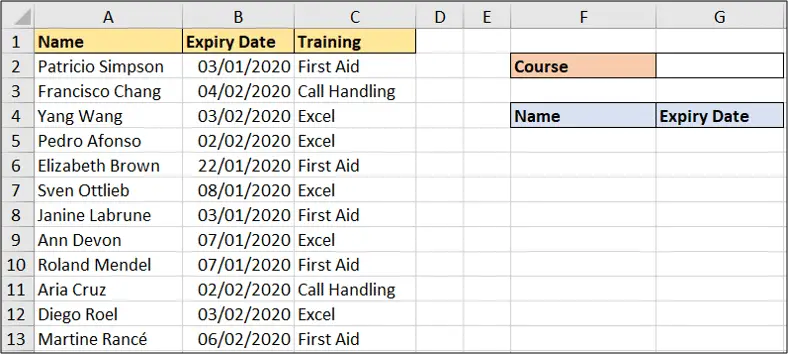
For example, we have a list of training (columns A:C) with a date column for when that training requires renewing. It has been formatted as a table named training.

And we want to return a list into the range to the right (columns F and G) of the names and expiry dates of the training that is overdue.

Sample data for the formula examples

So in cell F5, we will use the FILTER function.

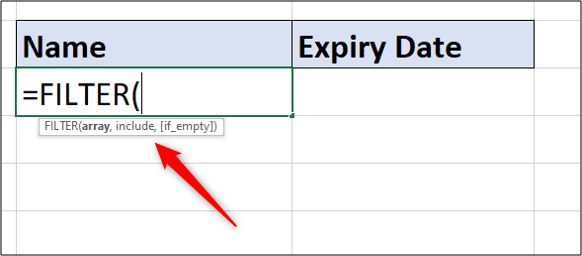
The FILTER function accepts three arguments – array, include and if_empty.

Excel FILTER function arguments

Array: The range of values you want to be filtered.

Include: The filter criteria. Boolean expressions which will determine what rows or columns to return.

If Empty: The action to take if no results are returned by the filter. This is an optional argument.

The following formula can be used to return the name and expiry date.

=FILTER(training[[Name]:[Expiry Date]],training[Expiry Date]<TODAY(),"All up to date")

The Array is the name and expiry date columns of the table (table references are used in the formula) because this is the information we want to be returned.

The following criteria is used for the Include argument.

training[Expiry Date]<TODAY()

This ensures that the expiry date is before today’s date.

Finally the text “All up to date” will be returned if the FILTER function returns no records.

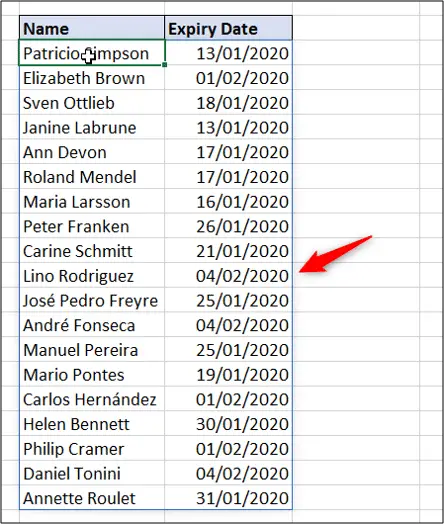
The following results are returned. A blue border is shown around the “spill” array.

Dynamic array spill results with blue border

Because dynamic arrays have been used here, all results are returned by one formula. However, to edit the formula, you must do this in the first cell of the array only (cell F5).

Excel FILTER Function with Multiple Criteria

The previous FILTER function example has only one criterion – if the expiry date was in the past.

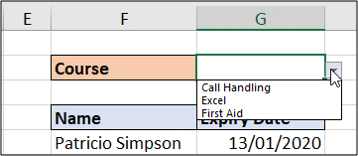
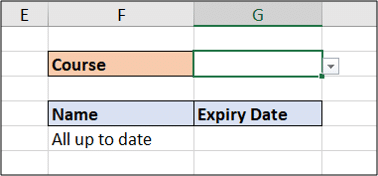
However, let’s test the training course as well. In cell G2 there is a drop-down list for the different courses – call handling, Excel and first aid.

Drop down list of different training courses

We want the FILTER function to return the name and expiry date of the training that has expired AND for the course listed in cell G2.

To do this we need to surround both logical tests in brackets and multiply them.

This is the complete formula.

=FILTER(training[[Name]:[Expiry Date]],(training[Expiry Date]<TODAY())*(training[Training]=G2),"All up to date")

And here is the Include argument isolated so that it is easier to understand.

(training[Expiry Date]<TODAY())*(training[Training]=G2)

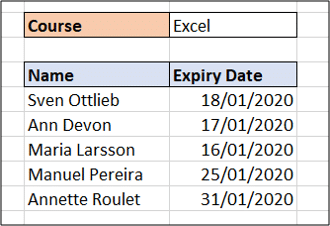
The formula returns the following results when Excel is selected.

Formula results dependent upon drop down value

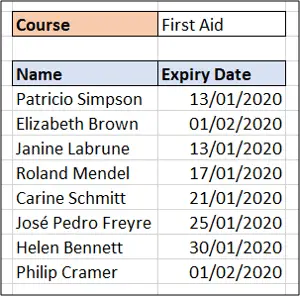
Changing the course in the drop-down would immediately produce the results for that course. Here are the results for First Aid training.

Results of the Excel FILTER function

Why multiply them?

Whenever you want to perform And logic and only include the results where all logical tests are equal to true, you must multiply each boolean expression.

The reason for this is because each test is conducted separately.

So all the expiry dates that are previous to today’s date return a true. This is a snapshot of how the first 11 rows of our data are evaluated.

{TRUE;FALSE;FALSE;FALSE;TRUE;TRUE;TRUE;TRUE;TRUE;FALSE;FALSE}

And then all training that is equal to the value in cell G2 return a true.

{FALSE;FALSE;TRUE;TRUE;FALSE;TRUE;FALSE;TRUE;FALSE;FALSE;TRUE}

The two arrays are then multiplied. The rows that are equal to 1 are the results that are returned.

{0;0;0;0;0;1;0;1;0;0;0}

So multiplying the expressions ensures that all tests must equal to True to evaluate to 1.

How about OR logic?

If you wanted a scenario where only one of the logical tests must equal true to be included, then wrap each boolean expression in brackets and add them with the plus operator (+) instead.

Tidy this up with the IF Function

The previous example works great, but only if cell G2 is populated with one of the course names.

If it is not, then the text “All up to date” is returned. And this is not true.

Use the FILTER function with IF to handle errors

The following formula uses an IF function to test if cell G2 is empty. If it is, then use the FILTER function with no test on a course name, but if it isn’t then use the FILTER function that does test the course name in cell G2.

=IF(G2="",FILTER(training[[Name]:[Expiry Date]],training[Expiry Date]<TODAY(),"All up to date"),FILTER(training[[Name]:[Expiry Date]],(training[Expiry Date]<TODAY())*(training[Training]=G2),"All up to date"))

This formula may seem daunting due to its size. But really it is just two FILTER function being controlled by the IF function and the test on cell G2.

Breaking the formula up onto different lines can make it easier to understand.

=IF(G2="", FILTER(training[[Name]:[Expiry Date]],training[Expiry Date]<TODAY(),"All up to date"), FILTER(training[[Name]:[Expiry Date]],(training[Expiry Date]<TODAY())*(training[Training]=G2),"All up to date"))

Use the FILTER Function with Other Excel Functions

The previous example showed the FILTER function with the IF function.

One of the great advantages of the FILTER function is that it returns an array based on criteria – like a super lookup. And this array could be used in any Excel function.

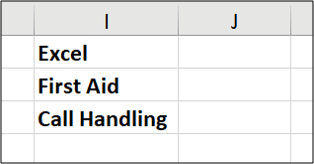
In the range below we will count the number of training that has expired for each course.

Count the instances of each training

To do this we will combine FILTER with the COUNTA function.

FILTER could be combined with any function – SUM, LARGE, VLOOKUP, MEDIAN making it extremely flexible.

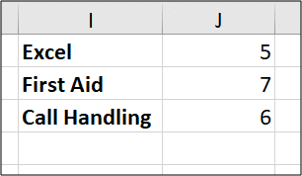
The formula below returns the count of expired training for each course.

=COUNTA(FILTER(training[Name],(training[Expiry Date]<TODAY())*(training[Training]=I1)))

The formula returns the names if the date has expired and training is equal to the value of I1. These names are then counted by COUNTA.

Excel FILTER function with COUNTA

The Excel FILTER function is incredibly useful and will change the way people use formulas.

There are so many scenarios where this function will come in handy. For example, below is a video on using it to create a searchable drop-down list.

Some of these special scenarios will become clear as you play around with it and use it in your workplace.

Conditional Formatting Multiple Columns – 3 Examples

In this blog post, we will explore using Conditional Formatting with multiple columns. And we will run through three different examples of doing so.

Conditional Formatting is typically applied to one cell, or column. It evaluates the cells in that range, and also applies the formatting to that same range.

In this blog post though we take things further to see example of testing and formatting multiple columns.

Using the AND Function with Conditional Formatting

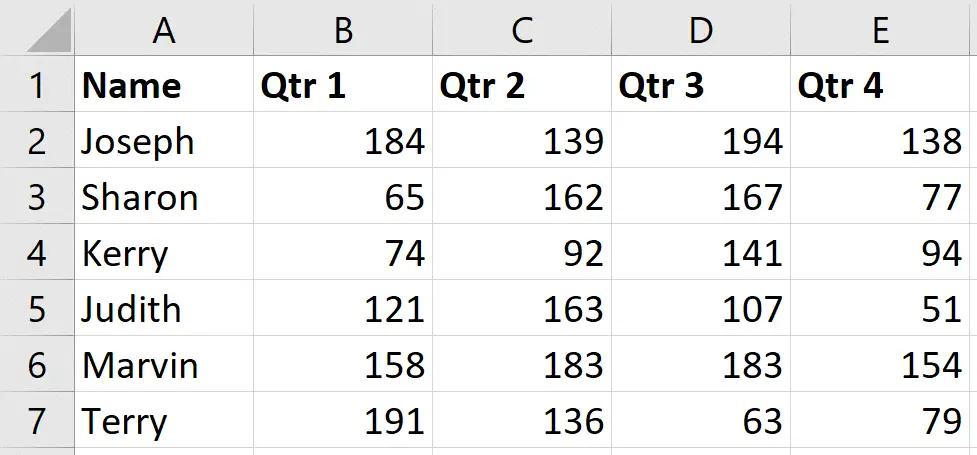
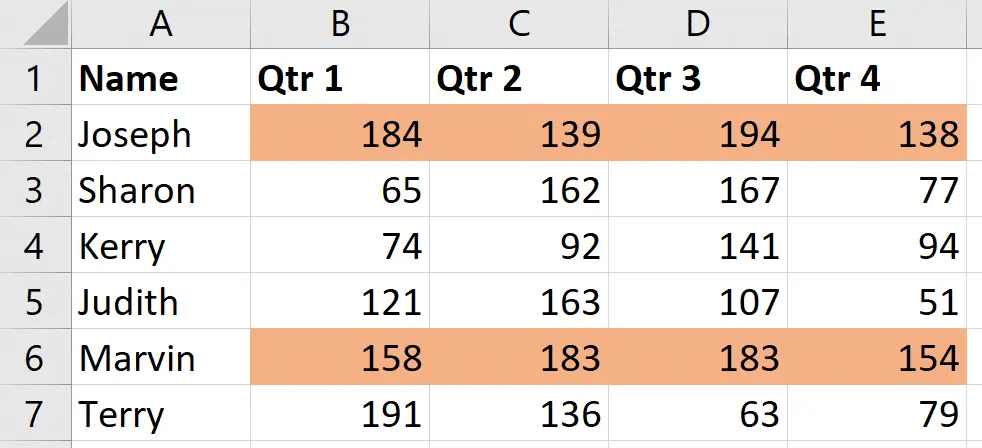
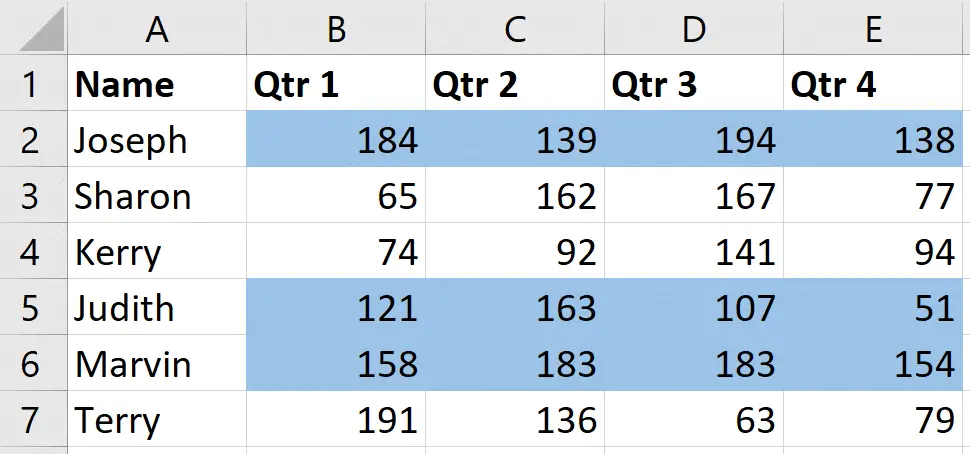
In this first example we want to apply a Conditional Formatting to the data set below.

The dataset that the article will use. A list of quartely sales.

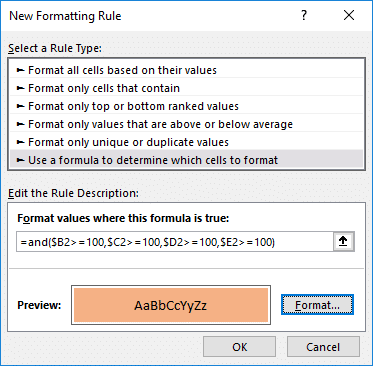
We want to format the row if every value in columns B, C, D and E is greater than or equal to 100.

  1. Select the range of cells you want to format (B2:E7 in this scenario).
  2. Click Home > Conditional Formatting > New Rule.
  3. Select the Use a formula to determine which cells to format option.
  4. Enter the formula below into the box provided.
=AND($B2>=100,$C2>=100,$D2>=100,$E2>=100)
The AND function used in a Conditional Formatting feature.

The column are made absolute in the formula so that it does not move to each cell when we copy it to the right.

Click the Format button and choose what formatting you would like.

The finished article looks like below. Two of the persons met this target.

The completed Conditional Formatting rule with the AND function.

Testing a Threshold Value in a Another Cell

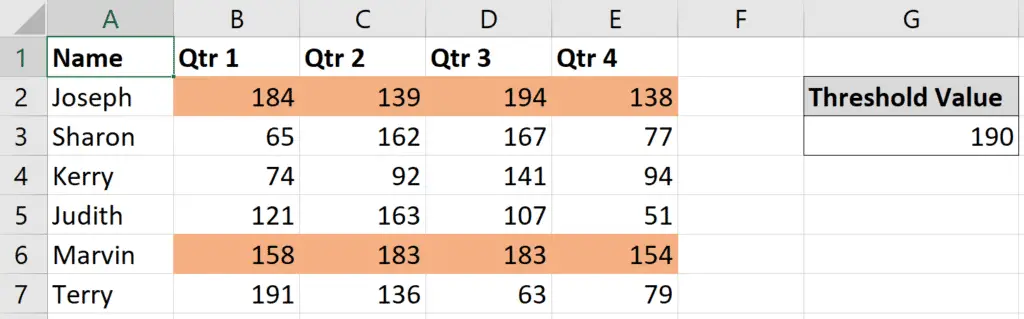
In this example, we would like to format the row if any one of the cells has a value greater than or equal to the value in another cell.

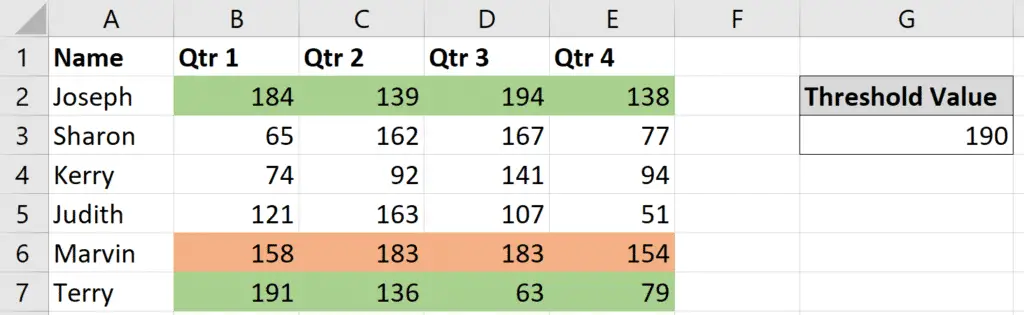
In the data below, we have a threshold value in cell G3 which we would like to test against. The Conditional Formatting rule from the previous example is also still applied.

Sample data of quarterly sales and that has a threshold value entered in cell G3.

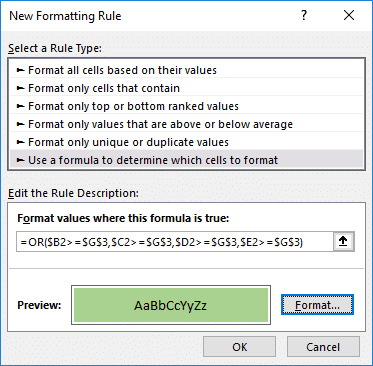
Because we are hoping to apply the formatting if any one of the cells is true – we will use the OR function.

Follow the steps from the previous example to create a new rule and enable us to enter a formula.

We will use the following formula. The reference to cell G3 is absolute.

=OR($B2>=$G$3,$C2>=$G$3,$D2>=$G$3,$E2>=$G$3)
OR function within a Conditional Formatting rule to test if at least one values meets our condition.

The rule is applied to the dataset.

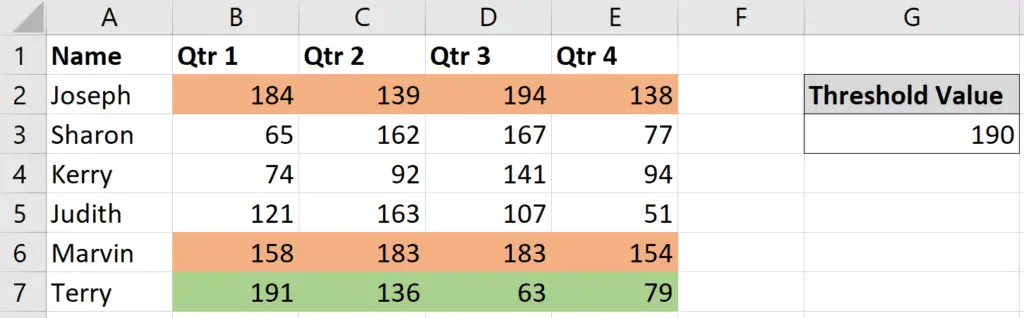
Threshold Conditional Formatting rule applied.

You can see that an additional row has been formatted, but it has also overwritten one of the rows from the previous example (Joseph).

Now, the previous rule was more important than this one. So we need to change the order of the rules so that if they are both true, then the rule with the AND function has priority.

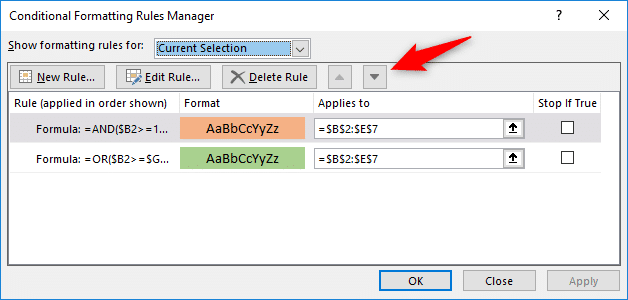
Click on one of the values in the range and click Home > Conditional Formatting > Manage Rules.

Use the arrows as indicated in the image below to change the order of the rules so that the AND function is on top. The higher in the list, the greater the priority.

Changing the order of Conditional Formatting rules

Now this is what we wanted.

Conditional Formatting rules applied in the correct order.

And if the value in cell G3 is changed. the Conditional Formatting rule will react to this.

More Than Two Columns Meet Criteria

In this final example, we would like to apply the Conditional Formatting rule if more than 2 of the columns have values of 100 or more.

We will use the COUNTIF function for this.

This function can count how many cells contain a value of 100 or more. And then we can test if the answer to that is more than two.

Follow the steps from the previous examples to create a new Conditional Formatting multiple columns rule using a formula.

The formula below can be used.

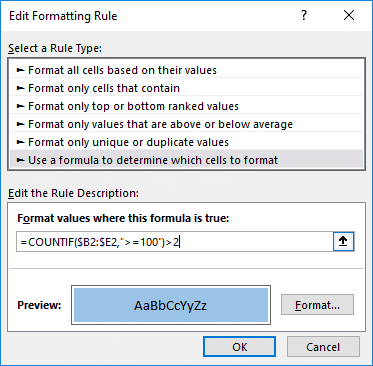
=COUNTIF($B2:$E2,">=100")>2
Using the COUNTIF function with Conditional Formatting

The rule is applied to the data range. The previous rules have been removed.

Formatting when more than two column meet criteria.

In this blog post we looked at three different examples of how and why to test multiple columns with Conditional Formatting.

I hope it has given you some ideas where you might be able to apply similar techniques.

Excel IF Function Contains Text – A Partial Match in a Cell

In this post, we will look at how to use the IF function to check if a cell contains specific text.

The IF function when used to compare text values, checks for an exact match. But in this blog post we want to check for a partial match. We are interested if the cell contains the text anywhere within it.

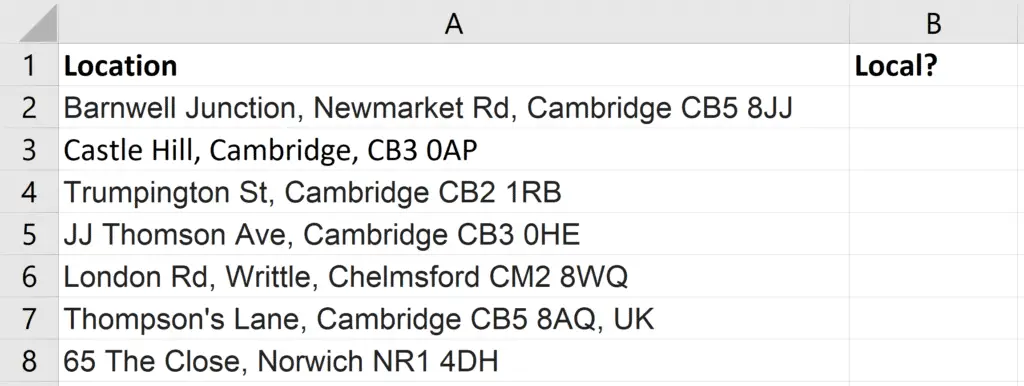
For our example, we have a list of addresses as shown below. And we want to display the word ‘local’ if the address contains the text ‘CB2’.

The sample data of addresses for our IF function contains text examples

So any postcode beginning with ‘CB2’ is considered local. Anything else is not.

[Read more…] about Excel IF Function Contains Text – A Partial Match in a Cell

Excel ABS Function to Return the Absolute Value – and 2 Reasons Why

In this blog post, we will look at how to get the absolute value of a number using the Excel ABS function – and 2 examples WHY you might want to do that in Excel.

Lets start by defining what exactly an absolute value is.

An absolute value of a number is its distance from 0 regardless of its sign (positive or negative. For example, the absolute value is the same for 150 and -150 because the distance from 0 for both is 150.

Therefore, the most common reason in Excel to calculate an absolute value, is to convert a number from negative to positive within a formula.

The Excel ABS Function

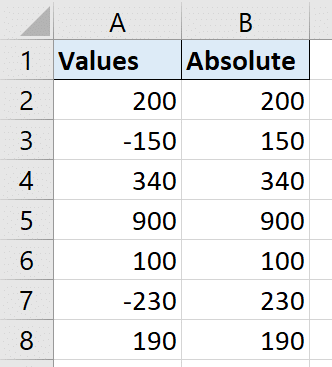
This is done using the ABS function. You can see a simple example of this function used below in column B to return the absolute value of each number in column A.

=ABS(A2)
Return the absolute value of a number


Watch Two Useful Examples of the Excel ABS Function

Sum the Absolute Values in Excel

A real-world example could be that you want to sum a list of values.

And these values are a mixture of negative and positive. However you wish to sum the absolute values of those numbers, and not treat the negative values as negatives.

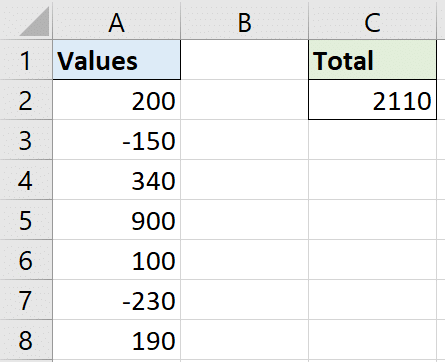
One way that we could do this, would be to embed the ABS function within a SUM function like below.

=SUM(ABS(A2:A8))

Because we are providing the ABS function with a range of cells, and not a single cell, this would need to be run as an array formula. So be sure to press Ctrl + Shift + Enter and not just Enter.

Summing absolute values with the ABS function in Excel

We could avoid an array formula though by using the SUMPRODUCT function instead. SUMPRODUCT is an array function and can therefore handle ranges of cells eliminating the need for Ctrl + Shift + Enter.

=SUMPRODUCT(ABS(A2:A8))

Check if a Number is Within a Tolerance Limit

Another useful reason to use the ABS function is to check if a number is within a specified tolerance level.

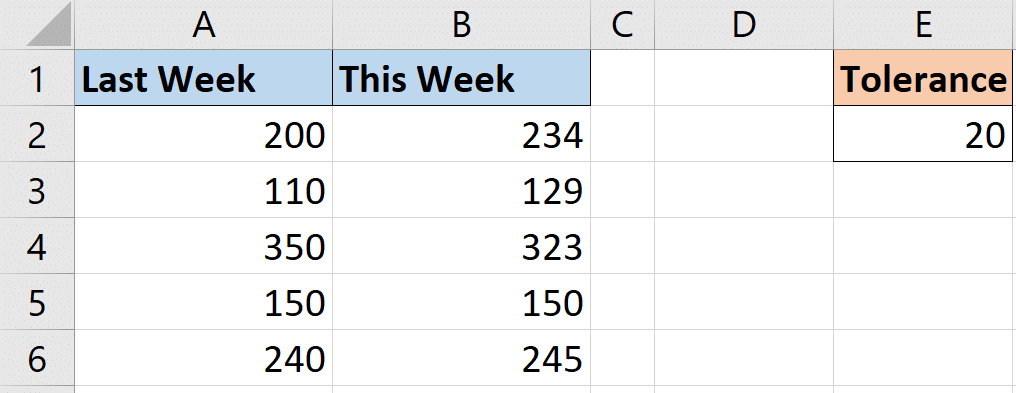
In the image below, we have some values from last week and some values for this week. And we need these new numbers to be within a range, or tolerance limit to last weeks. A tolerance of 20 has been set in cell E2.

This week and last weeks values with a tolerance limit

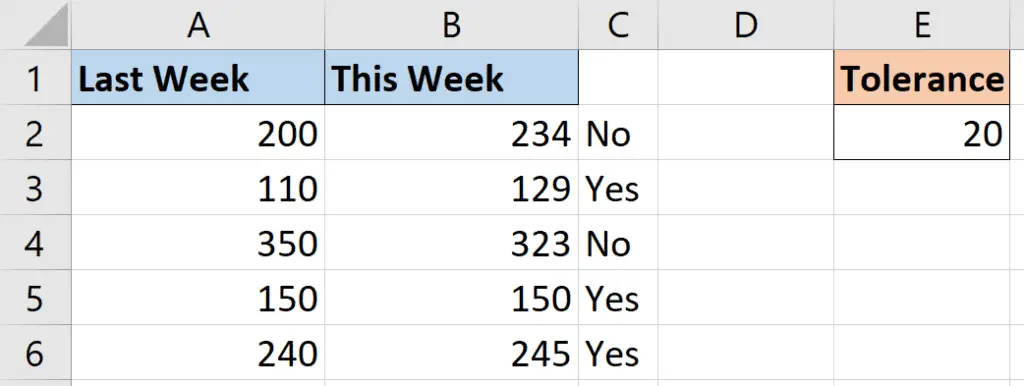
In this example, the IF function will be used to test if the difference of the two numbers is within 20.

=IF(ABS(B2-A2)<=$E$2,"Yes","No")

The Excel ABS function is used because the difference of the 2 numbers might result in a negative value. But we need the absolute value to check if it is within tolerance.

Using the absolute value function in Excel to check if a value is within tolerance

This easily identifies those within tolerance with a Yes, and those that are not with a No. The tolerance in cell E2 can easily be changed in the future if needed.

Adding a Conditional Formatting Rule

Maybe we wanted the result to be more visual by adding some Conditional Formatting. We can change the Yes and No to a 1 and 0 for easier testing.

=IF(ABS(B2-A2)<=$E$2,1,0)

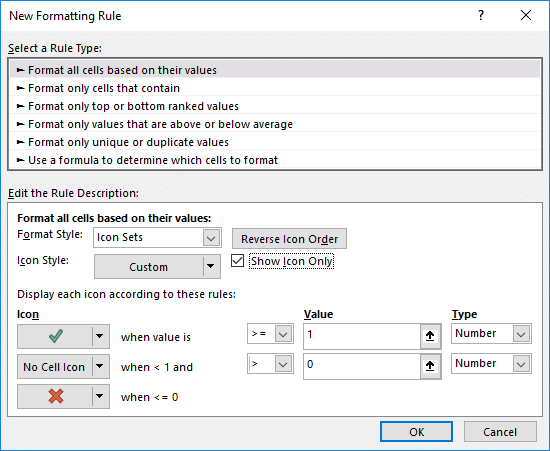
I would like to add the green tick and red cross icon sets. So lets perform the following steps.

  1. Select the range of cells (in this case its C2:C6)
  2. Click Home > Conditional Formatting > New Rule (the following steps can be seen in the image below)
  3. Select Icon Sets from the Format Style drop down
  4. Select the green tick for the first icon, nothing for the second and a red cross for the third icon
  5. Change the Type option from Percent to Number
  6. Enter a 1 in the first box, and 0 in the second box
  7. Change the logical operator to a greater than sign only in the second row
  8. Check the box for Show Icon Only
Creating the Conditional Formatting Rule

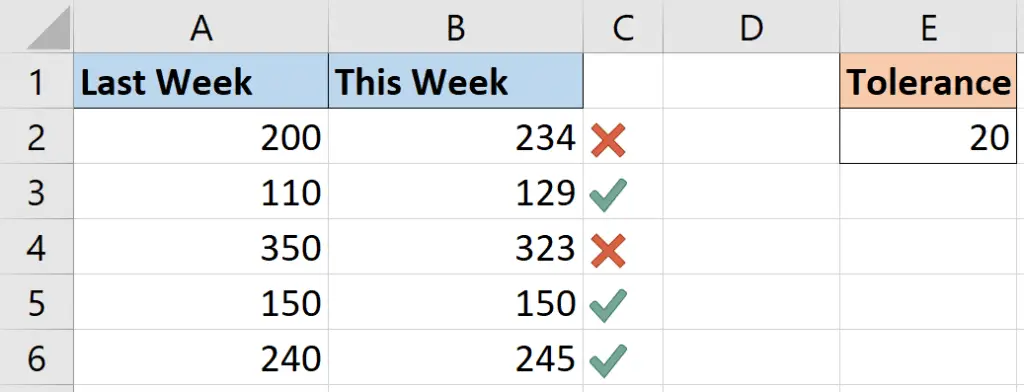
The completed rule shows a green tick if the value is 1 or greater, and a red cross if 0 or less. It will also show the icon instead of the value.

Nice visual on values returned by the Excel ABS function

This post showed two examples of why getting the absolute value could come in handy in the real-world. There are many.

However, it is typically when you need a positive number in a formula. Especially when subtracting value which might result in a negative that you do not want.

  • « Go to Previous Page
  • Page 1
  • Interim pages omitted …
  • Page 5
  • Page 6
  • Page 7
  • Page 8
  • Page 9
  • Interim pages omitted …
  • Page 19
  • Go to Next Page »

Primary Sidebar

Recent Posts

  • Excel SWITCH Function – Nested IF Function Alternative
  • Sum Formulas Only in Excel
  • How to Calculate Age in Excel
  • Custom Sort in Excel
  • Case Sensitive Lookup with XLOOKUP in Excel
Advanced Excel Success book

Footer

Contact

[email protected]

LinkedIn Twitter YouTube

Useful Links

  • Home
  • Excel Online Courses
  • Tutorials
  • Sitemap
  • Privacy Policy
  • Jobs by Jooble

Course Topics

  • Blog
  • Charts
  • Courses
  • Dashboards
  • Downloads
  • Excel Tips
  • Formulas
  • Mail Merge
  • Office
  • PivotTables
  • Power BI
  • Power Pivot
  • Power Query
  • VBA

Join Our Mailing List

© Copyright 2009 Computergaga · All Rights Reserved ·